Opal user guide
Write with confidence.
Find your way around the workspace, compile a project, control interactive editing, and add AI only when you want it. This guide is about the application; it assumes you already have a LaTeX project or template.
Meet the workspace
Opal keeps project navigation, source, and the compiled PDF in one continuous workspace.
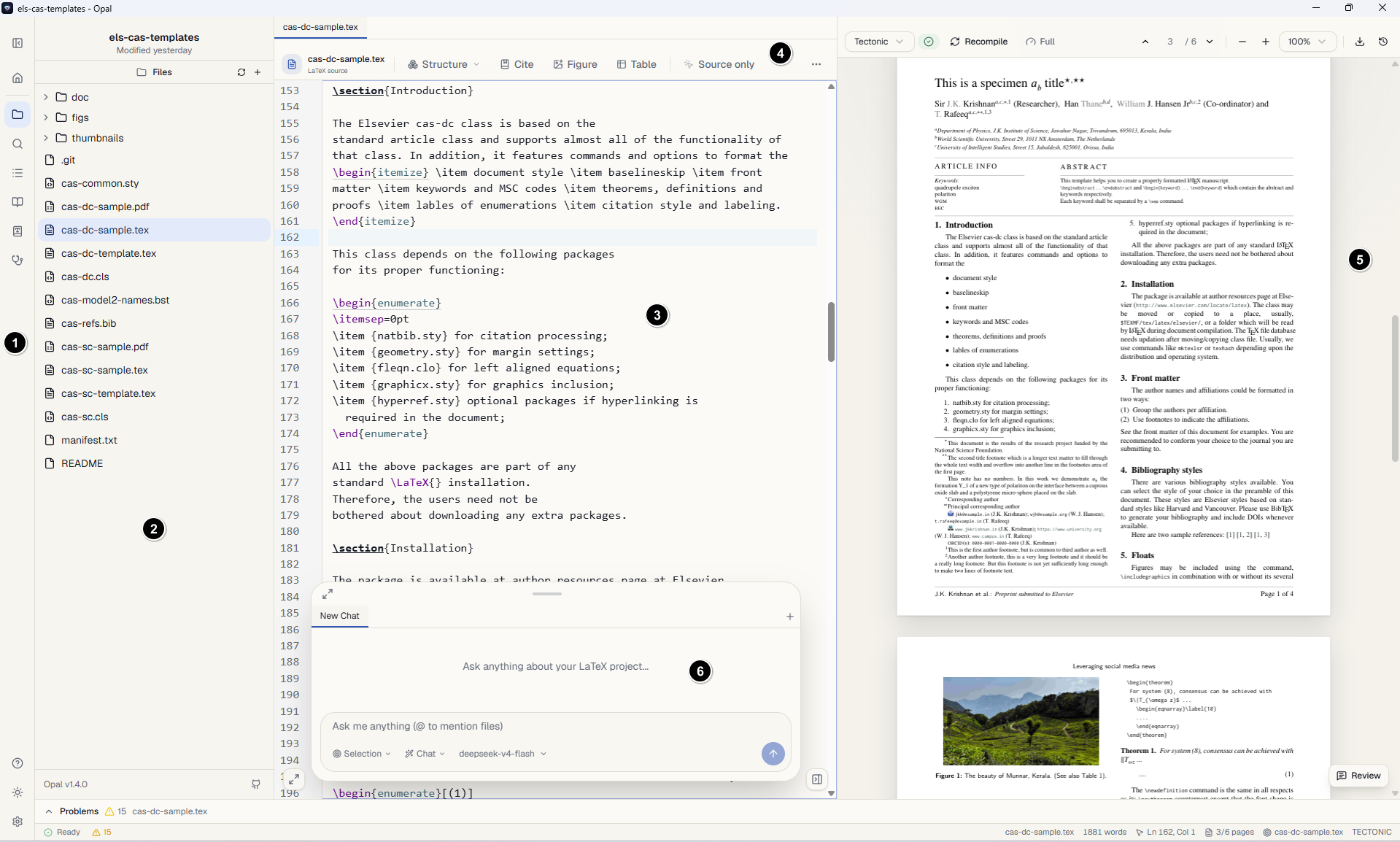
Activity railOpen Files, Search, Outline, References, Grammar, and Project health.
Project panelBrowse files and folders or inspect the selected rail tool.
Source editorEdit LaTeX, BibTeX, Markdown, and other project text files.
Editor toolbarInsert structures, citations, figures, and tables; choose how clicks behave.
PDF previewCompile, navigate pages, zoom, export, and jump back to source.
Chat with AIWhen you need assistance with your LaTeX document.
Open a project
A project is a folder containing your LaTeX sources, bibliography, images, and supporting files.
- From the home screen, choose Open folder, a recent project, or a template.
- To bring work from elsewhere, import a LaTeX ZIP or the default branch of a public GitHub repository.
- Open the file that contains
\documentclass. Opal normally detects it as the root file used for compilation. - Choose Compile in the PDF toolbar. The output appears on the right.
Opal works directly with local files. You can keep using Git, another editor, or your existing backup system.
How Opal chooses the root file
Compilation starts from the root file — the one containing \documentclass. Opal checks, in
order: a % !TEX root = main.tex magic comment near the top of the active file, the active file
itself, a main.tex or document.tex with \documentclass, then any
other candidate in the project. In multi-file projects, add the magic comment to chapter files so compiling
from a chapter still builds the whole document.
Return home or switch projects
Use the Home icon near the top of the activity rail. Open projects also appear in Ctrl K, so you can switch without returning to the home screen.
Start a new document
The home screen offers templates, a blank start, imports, your recent work, and a beginner tutorial.
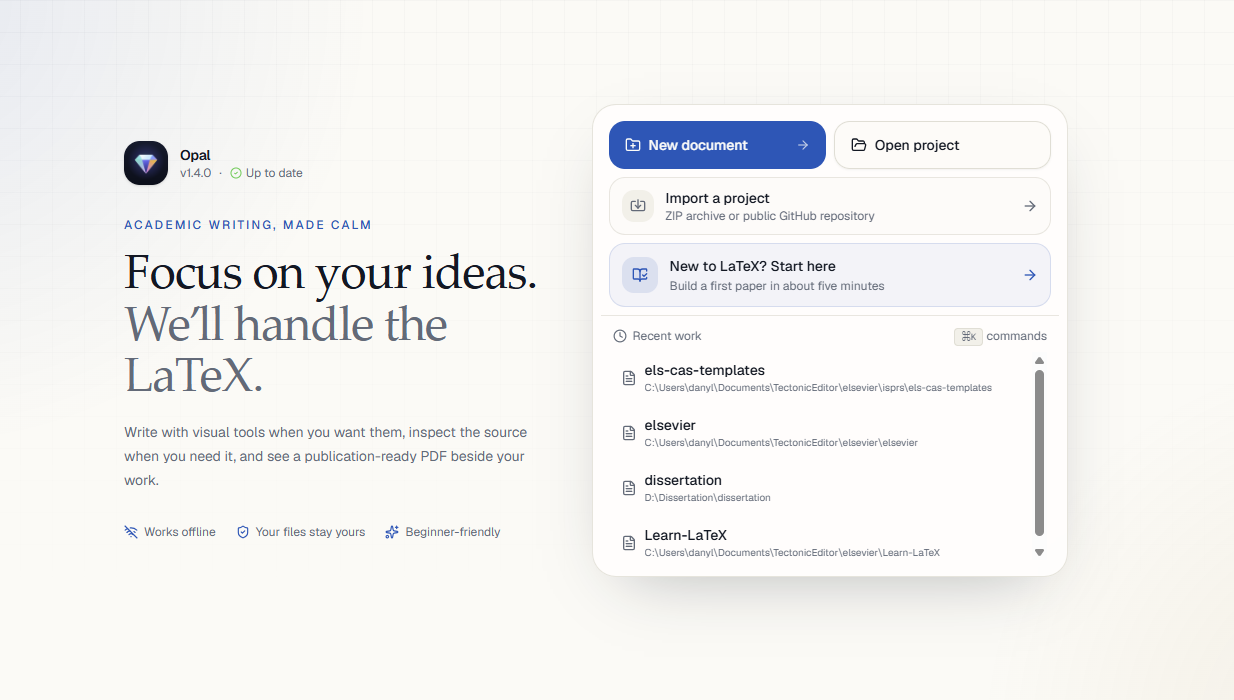
Guided setup or blank document
Choose New document, then either Guided Setup — pick from the template gallery and, with AI configured, describe your document to get a tailored starting point — or Blank Document for an empty LaTeX file.
Templates
The gallery covers common academic documents: research paper, IEEE and ACM conference formats, thesis, technical and scientific reports, book, Beamer presentation, academic poster, CV, formal letter, and newsletter. Each template arrives with the packages its layout needs already declared, so it compiles immediately.
Recent work
Recent projects are listed on the home screen; hover a row to remove it from the list without touching the folder on disk. Inside the workspace, Ctrl K reaches the same projects.
Edit and compile
Work in source, inspect the PDF, and move between them without losing your place.
Save and build
Use Ctrl S to save the active file. Choose Compile or press Ctrl Enter for an explicit build. Compile errors appear near the preview and in the Problems area.
Work with tabs
Opening a file shows it in a preview tab, which the next opened file reuses. Double-click the tab, edit the file, or choose Open in New Tab to pin it; pinned tabs stay until you close them. This keeps quick look-ups from crowding out the files you are actually editing.
Move between source and PDF
Click a location in the PDF to jump to the corresponding source line. Use the editor and preview controls to return to a matching location. This SyncTeX connection is most precise after a successful compile.
Control the split
Drag the divider to give source or preview more space. Toggle the PDF with Ctrl \, or use focus mode when you want one uncluttered writing surface.
Choose how the editor responds
Interactive editing is useful for structured content; source-only mode keeps every click in the code.
Interactive mode
When the toolbar button says Interactive, clicking a table, citation, figure, equation, or supported LaTeX structure opens its focused editor. Changes still update the underlying source.
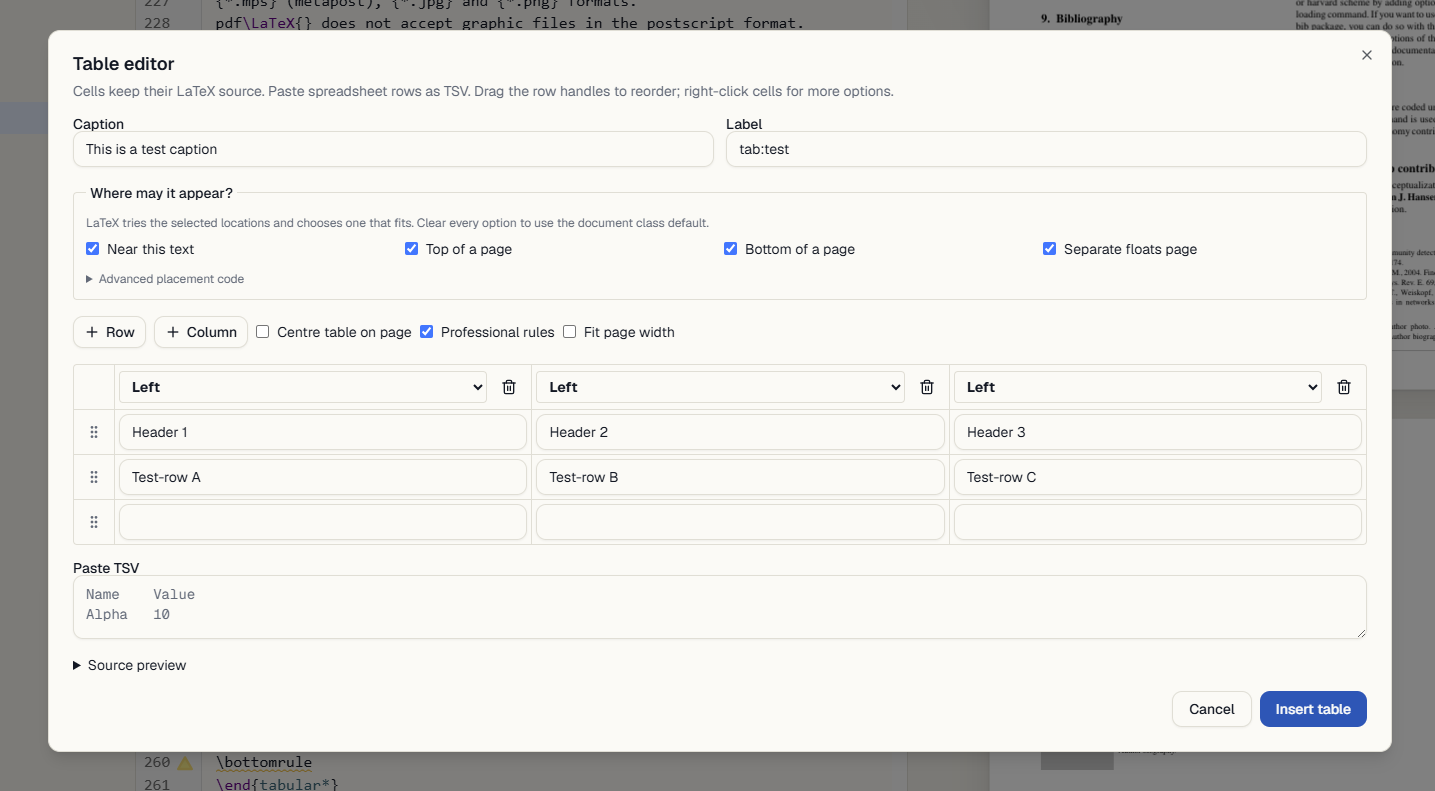
Source-only mode
In source-only mode, place the cursor inside the element and press Alt Enter. The relevant editor opens without changing your default click behaviour.
Click the same toolbar button until it says Source only. Clicks now place the cursor normally and do not open a structured editor.
Manage references and citations
Keep bibliography records visible while you write, insert valid citation keys without memorising them, and fix citation problems before they reach the PDF.
Open References from the activity rail to search the project bibliography, filter issues,
add records, and connect supported external sources. When a project contains several .bib
files, switch the scope between the files the current document actually uses and every bibliography file in
the project.
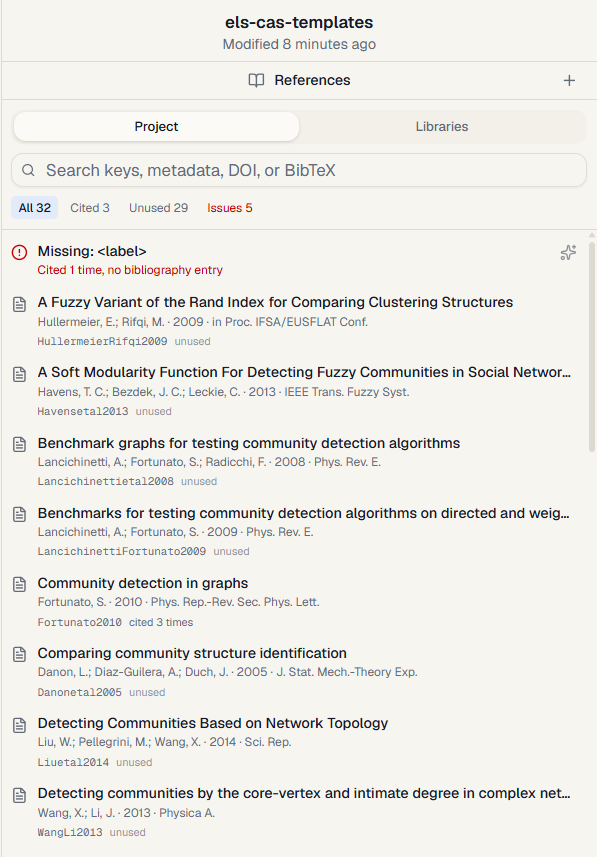
Insert citations while writing
- Add a record by identifier, import BibTeX, or connect Zotero, CiteDrive, or another bibliography file.
- Put the cursor where the citation belongs and choose Cite in the editor toolbar.
- Search, select a citation style, and insert. Opal writes the corresponding LaTeX command into the source.
Metadata lookups can use Crossref, arXiv, or Open Library. External services require a network connection; local bibliography editing does not.
Find citation problems
The filter row counts references by state so problems are visible at a glance:
- Cited / Unused — which records the document actually cites, and which sit unused in the bibliography.
- Issues → Missing — citation keys used in the document that have no bibliography record. Open one to see where it is cited, then add the record by identifier or, with AI configured, ask Opal to investigate likely candidates.
- Issues → Duplicate keys — the same key defined more than once, possibly across
different
.bibfiles, which makes the citation ambiguous at compile time.
Resolve duplicate keys
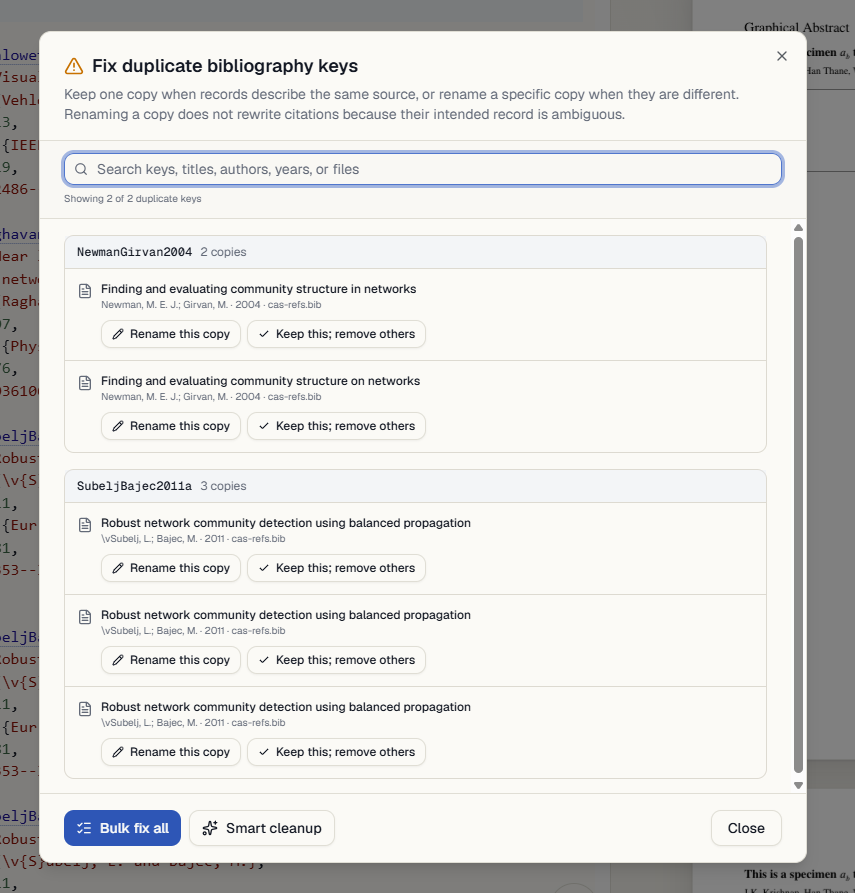
Choose Review / bulk fix duplicate keys to open the resolution dialog. For each duplicated key, compare the copies — title, authors, year, and source file are shown — then pick the fix that matches the situation:
- Keep this; remove others — when the copies describe the same source, keep one record and delete the redundant ones.
- Rename this copy — when different works ended up sharing a key, give one copy a
new key. Existing
\citecommands are not rewritten, because Opal cannot know which record each citation intended. - Bulk fix — the first copy of every duplicated key keeps its original key; the remaining copies receive new keys. No records are deleted.
Tidy BibTeX files
Tidy normalises how records are written; it does not remove duplicate records. Use the duplicate-key dialog above to merge or rename copies.
With a .bib file open, choose Tidy file in the editor toolbar to reformat
every record: consistent braces, field order, casing, and indentation, with empty and repeated fields
removed. Entries are cleaned in place — never reordered or merged — so the diff stays reviewable. To clean a
single record, right-click inside it and choose Tidy this reference.
Connect reference libraries
Pull bibliographies from Zotero, CiteDrive, or a JabRef-managed file, and keep them
in sync as normal .bib files in your project.
Zotero
In the References panel, connect to Zotero one of two ways:
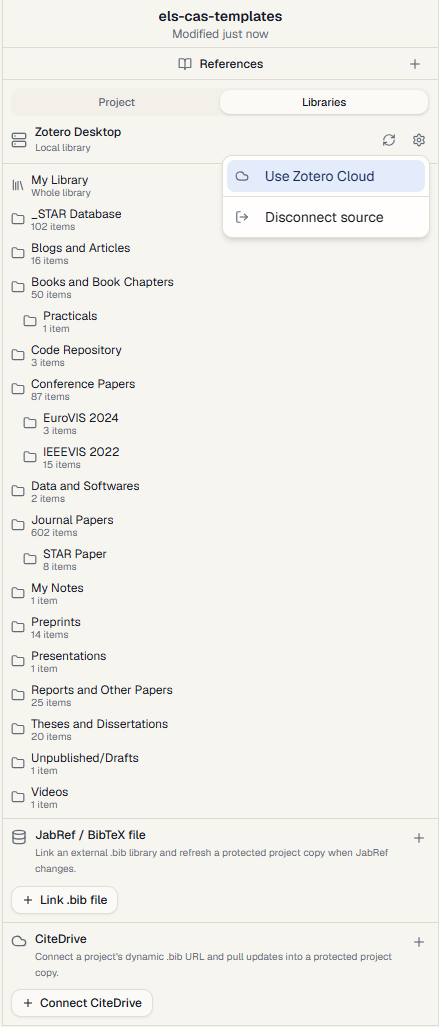
- Zotero Desktop — talks to the Zotero application on this computer. Works offline and needs no API key; keep Zotero running while you connect.
- Zotero Cloud — signs in to your online library through Zotero's authorisation page, or connect manually with an API key created at zotero.org/settings/keys.
Once connected, Opal lists My Library and your collections, including nested ones. Import
a collection to write it into the project as a .bib file; the row then shows the file it feeds.
Use Sync on a row to pull the latest records from Zotero, or stop syncing when the project
should keep its own copy. Records added in Zotero flow in on the next sync — citations you have already
inserted keep working because the .bib file stays in the project.
CiteDrive
In CiteDrive, open Connect Project and copy the dynamic .bib URL, then paste
it into Connect CiteDrive in the References panel. Opal fetches the bibliography into a
project file and can refresh it from the same URL later.
JabRef or any external .bib file
Link a bibliography file managed outside the project — for example one JabRef maintains — and Opal copies it in and tracks the original. When the source changes, refresh to update the project copy; if both copies changed, Opal reports the conflict instead of overwriting your edits.
Set up an AI provider
Opal works without AI. Connecting a provider adds chat, proofreading, completion, explanation, and review-based editing tools.
- Choose the Settings gear at the bottom of the activity rail.
- Under AI Provider, select Anthropic or OpenAI. Leave None selected to keep AI features off.
- Choose Set API key, enter the key from your provider, and save it.
- For an OpenAI-compatible service such as Ollama, DeepSeek, or OpenRouter, set the optional Base URL.
- Run Test connection. A successful authenticated response confirms the setup.
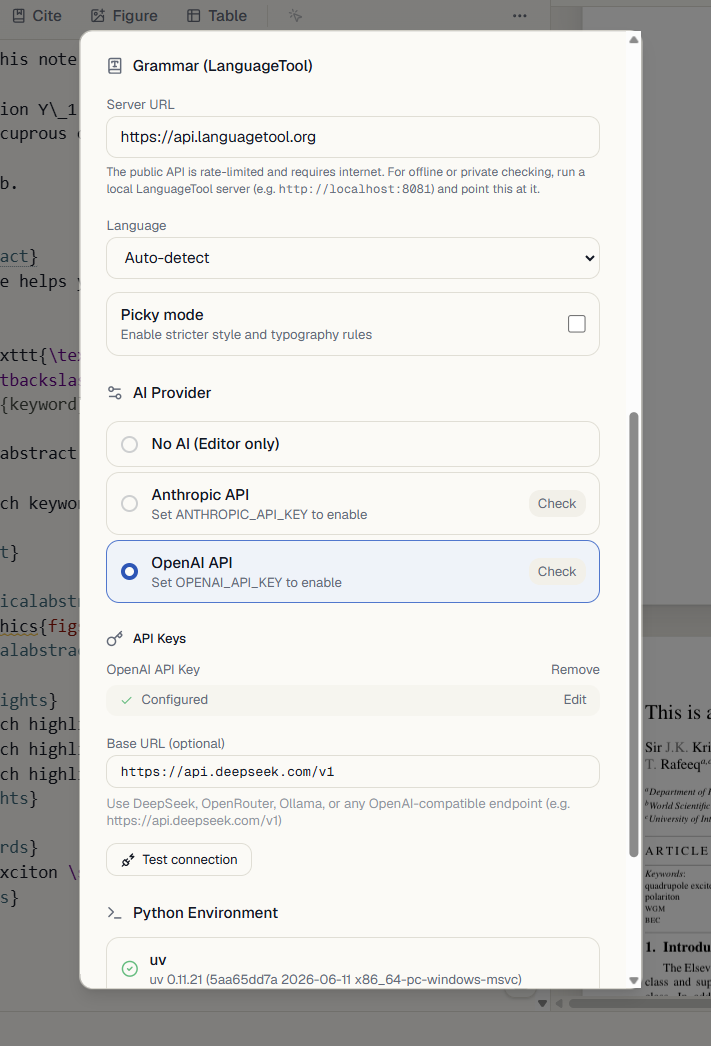
AI is bring-your-own-key and disabled by default. Suggested document edits wait for your approval before they become part of the source.
Turn AI off again
Return to Settings and select None. The AI chat and AI-only actions disappear; editing and local compilation continue normally. You can also remove a saved key from the provider section.
What else AI can do
Use the built-in actions for common jobs, or describe a precise task in chat. Opal sends only the scope and attachments you choose.
Improve prose without surrendering your voice
Select a passage and choose Proofread to check language and propose fixes. In Chat, ask for a paraphrase, a shorter version, a change of tone, clearer transitions, or an explanation of what is unclear. State what must remain unchanged — terminology, claims, citations, LaTeX commands, or word count — and use the smallest useful scope.
Continue, explain, and repair
Complete continues from the selected context; Explain can unpack LaTeX, equations, or unfamiliar project code; and Fix focuses on errors. From a compile failure, ask AI to explain the log or prepare a reviewable fix. You can also select text in the PDF for proofreading or use Ctrl X to capture a region and ask about it.
Search and validate references
Confirm the title, authors, venue, year, DOI, and relevance to your claim. Resolver-verified additions are labelled; unverified bibliography entries must be reviewed individually.
The References panel identifies missing citation keys and can ask AI to investigate one. Opal searches publication services for candidates, verifies a candidate’s metadata through its DOI or source record, and presents the evidence and confidence before offering a bibliography entry. It can also check missing or duplicate keys and help review duplicate records.
Review AI changes
Choose what context to send, then accept or reject every proposed edit.
Choose a sensible scope
Use a selection for a focused rewrite, a file for local context, a chapter for longer reasoning, or the project only when the request genuinely depends on multiple files. Smaller scopes are easier to review.
Inspect before accepting
Proposed changes appear as a review queue in the editor. Use F8 and Shift F8 to move between changes, then accept or reject each one. Check citations, numerical claims, and LaTeX structure yourself.
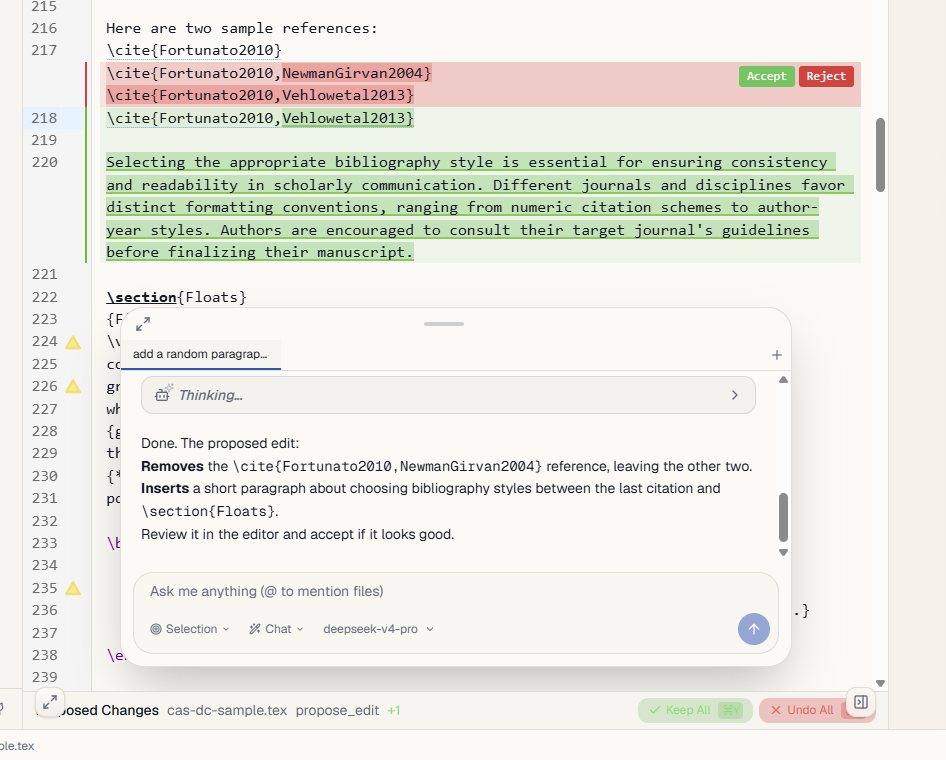
Opal makes a version-history snapshot before AI edits, giving you another recovery point if you need to compare or restore.
Review the finished PDF
Review mode turns the compiled document into a focused commenting surface without changing the LaTeX source.
- Choose Review in the PDF toolbar. Opal expands the PDF and opens the Review comments panel.
- Select PDF text and choose Add review comment, or right-click any PDF location and add a point comment.
- Write what should be changed or checked. The comment is anchored to that page and, when SyncTeX can resolve it, to the matching source location.
- Select a comment to return to its PDF annotation. Choose Source to leave Review mode and open the associated LaTeX.
- Resolve finished comments, reopen them when needed, or delete them. Use Show resolved to include completed feedback.
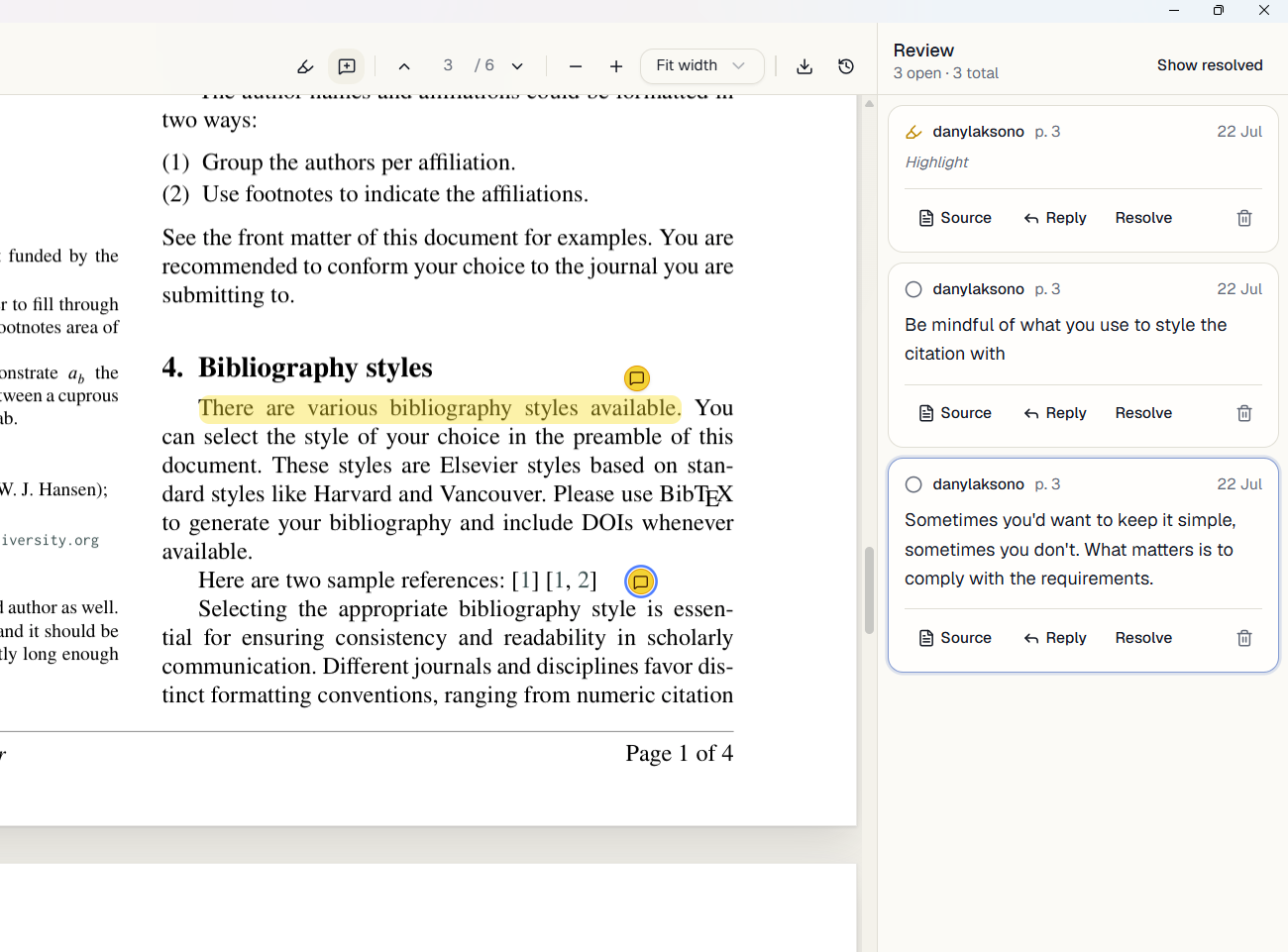
Review comments are saved with the project in each project folder. They are separate from AI proposed changes and do not alter the PDF or source until you make an edit.
Check grammar and style
LanguageTool checks the prose in the open file while leaving LaTeX commands, mathematics, and citations alone.
- Open Grammar from the activity rail and choose Check. The result applies to the file that was open when the check started.
- Select an issue to jump to the affected text. Spelling, grammar, and style or typography suggestions use distinct colours.
- Choose a suggested replacement to apply it, or dismiss a suggestion that does not fit the document.
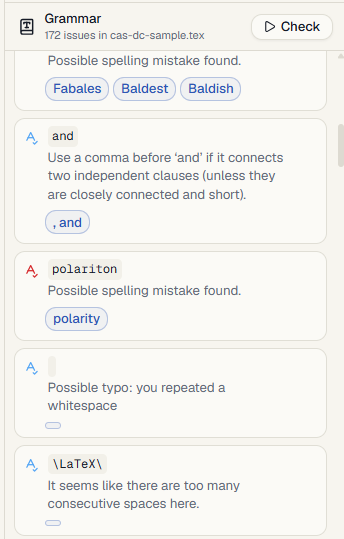
Configure LanguageTool
LanguageTool reports targeted rule-based suggestions. AI proofreading can make broader rewrites, so its proposed edits should be reviewed for meaning, terminology, and factual accuracy.
In Settings, choose automatic detection or a specific language and enable Picky mode for stricter style and typography rules. The default public LanguageTool service requires internet and is rate-limited; point Opal to a local LanguageTool server for offline or private checking.
Check project health
One panel surfaces the cross-file problems that otherwise only show up at compile time — or in a reviewer's report.
Open Project health from the activity rail. Opal analyses the whole project and groups findings by category, each marked as an error, warning, or informational note. Select an issue to jump to the offending location.
- Labels — duplicate
\labelkeys,\refcommands with no matching label, and labels nothing references. - Citations — duplicate bibliography keys, cited keys with no record, and records never cited. These mirror the Issues filters in the References panel.
- Assets — figures pointing at image files that do not exist, and image files no figure uses.
- Figures and tables — floats missing a caption or a label, which breaks numbering and cross-references.
- Packages — features your source uses whose package is not declared (with a one-click
fix that adds the
\usepackageline), packages declared twice, and packages that appear unused.
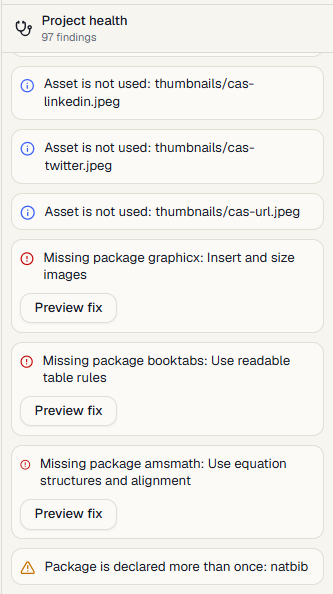
A useful pre-submission habit: run through Project health, then the References panel's Issues filter, then a final compile — in that order, so structural fixes land before the last build.
Use version history
Opal records project snapshots at natural checkpoints so an earlier state is always within reach.
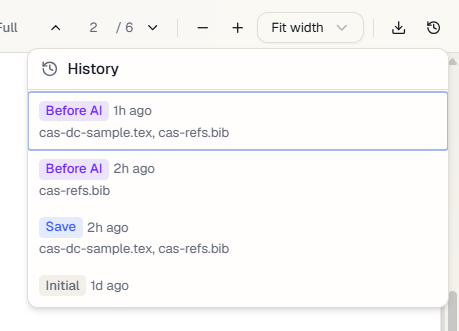
Choose History in the PDF toolbar to open the snapshot list. Snapshots are taken when you save, before a compile, and before AI applies edits — so a recovery point already exists by the time you need one.
- Select a snapshot to review its differences against the previous state directly in the editor.
- Label a snapshot you may want to find again, such as submitted draft.
- Choose Restore to return the project files to that snapshot.
Adjust appearance and focus
The palette button above Settings controls how the workspace looks without mixing display options into general settings.
Choose light, dark, or system mode; select a workspace colour palette; change editor text size; and set the code-highlighting theme. Click the displayed text size to reset it.
Ctrl plus scroll changes only the editor text size. Ctrl +, Ctrl −, and Ctrl 0 zoom the entire application.
Focus mode hides surrounding panels when you need a cleaner writing surface. Toggle it from the workspace controls or with Ctrl Shift F.
Reader mode is the mirror image: it hides the editor and gives the PDF the full workspace next to the side panel, so the outline works as a table of contents for browsing the document. Toggle it from the button on the preview or with Ctrl Shift R; double-clicking the PDF brings the editor back at the matching source line.
Useful keyboard shortcuts
Use Command instead of Control for the equivalent shortcuts on macOS.
Troubleshooting and FAQs
Start with the smallest check that can explain the problem.
The PDF is not updating. What should I check?
Save the file and run an explicit Compile. Check the error message and Problems area, confirm that Opal detected the correct root file, and make sure any referenced images or bibliography files exist at the paths used by your source.
Where is the full compile log?
Opal keeps build artefacts in the project's hidden /build/ folder; the
engine log is stored there next to the output as <root>.log. The Problems area
summarises errors, but the raw log is the place to check warnings such as overfull boxes or undefined
references. With AI configured, you can also ask chat to read and explain the build log.
I accepted a change I regret. Can I get the old version back?
Yes. Open History in the PDF toolbar and restore the snapshot taken before the change. Opal snapshots the project when you save, before compiles, and before AI edits are applied. See Use version history.
Why does clicking LaTeX open another editor?
Interactive editing is enabled. Choose Interactive in the editor toolbar to switch it to Source only. You can still open a contextual editor with Alt Enter.
Why can’t I see the AI chat?
AI chat is hidden while the provider is set to None. Open Settings, choose a provider, configure its key or endpoint, and run the connection test.
Does Opal require an account or internet connection?
No account is required, and editing plus compilation are local. The first use of some LaTeX packages may download them. AI providers, metadata lookups, Zotero Cloud, public GitHub imports, and grammar services may require a network connection.
Where is the beginner LaTeX tutorial?
The New to LaTeX guide is separate from this application documentation. Start it from the home screen; its graduation-cap icon appears in the activity rail while the tutorial project is open.
How do I report a bug?
Open the project on GitHub and create an issue with the Opal version, operating system, steps to reproduce, and any useful compile error. Remove API keys and private document content before attaching logs or screenshots.
No matching topic
Try a broader word such as “AI”, “compile”, “references”, “interactive”, or “appearance”.